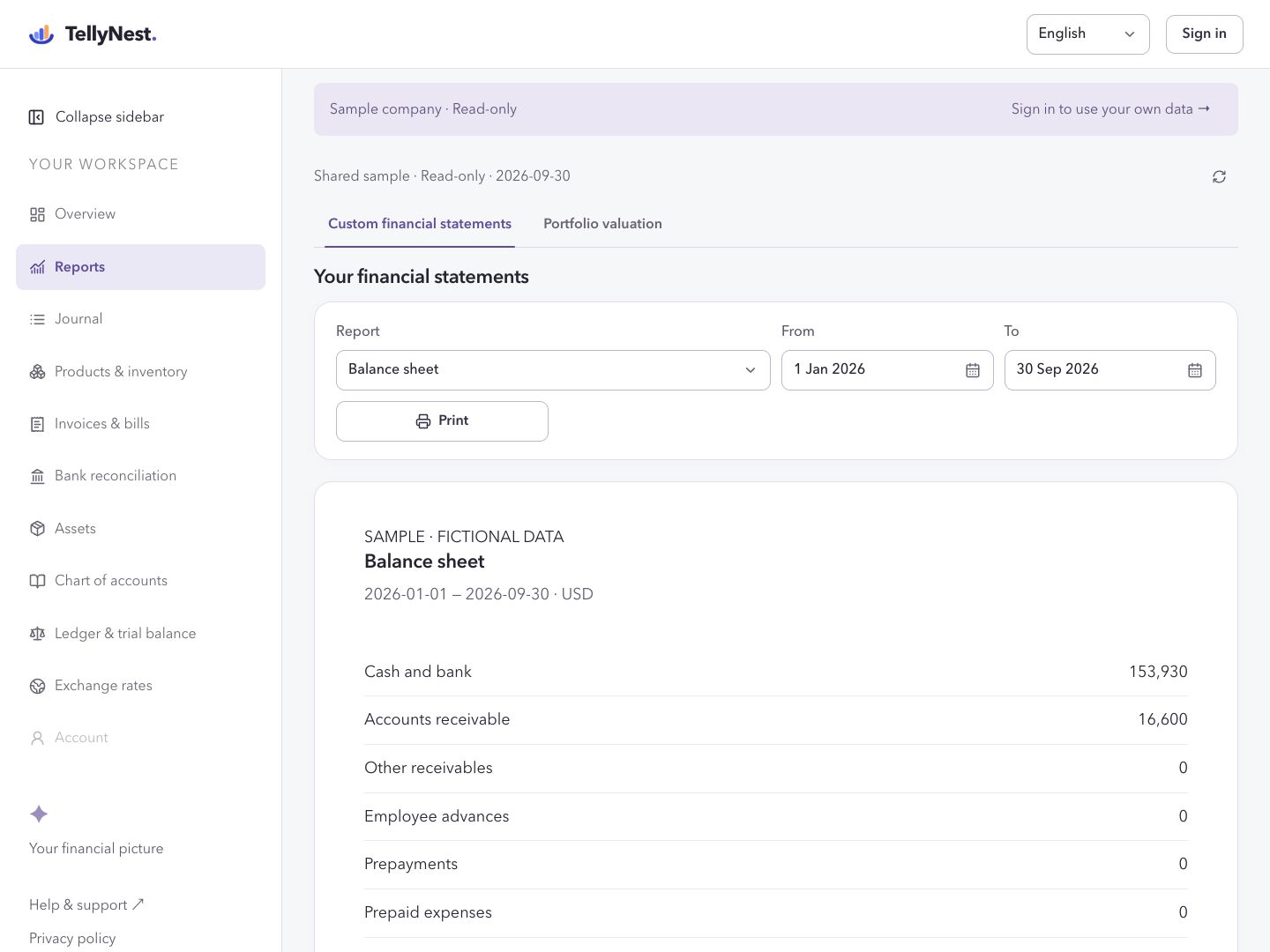
No login needed for the read-only sample. Creating or editing entries requires your own book.
Actual desktop interface · Fictional sample data
01
Choose a report and period
Open Reports and select a balance sheet, income statement or custom layout. Set the dates for the business question you want to answer.
02
Map accounts and calculations
In an editable book, choose the accounts or transaction types for each line. Set opening, movement or closing balances, add calculation rows, and review the live preview.
03
Review and print the statement
Check account coverage, signs and totals. Use Print to print the layout or save a PDF through your browser; export trial-balance working papers separately when needed.
Scope of this task
Custom layouts do not certify compliance with local accounting standards. Cash-flow and other custom statements require your own account mapping and review; tax filing and statutory submission are not included.
Before your first real entry
Know where your books live and what you can take with you.
Cloud storage and backups
Records are stored with Supabase in Tokyo, Japan. Signing out does not delete them. The workspace does not offer a full-account backup download or self-service point-in-time restore. Save regular exports; contact support about recovery before relying on it.
Exports you can keep
Download Excel working papers from supported journal, ledger, trial-balance, chart, asset and report screens. Print custom financial statements or save them as PDF. Exports are not a complete restorable copy of the account.
Regions and languages
The workspace supports English and Simplified Chinese, with a functional currency for each book. It provides general small-business bookkeeping, not a country-specific tax or payroll system. Confirm local recordkeeping and data-transfer requirements before using real business records.
What the workflows cover
Bank reconciliation uses uploaded CSV or .xlsx files and user-confirmed matches; there are no automatic bank feeds or money transfers. Inventory tracks serialized units, not a full warehouse or returns system. Tax filing and statutory certification are not included.
 TellyNest